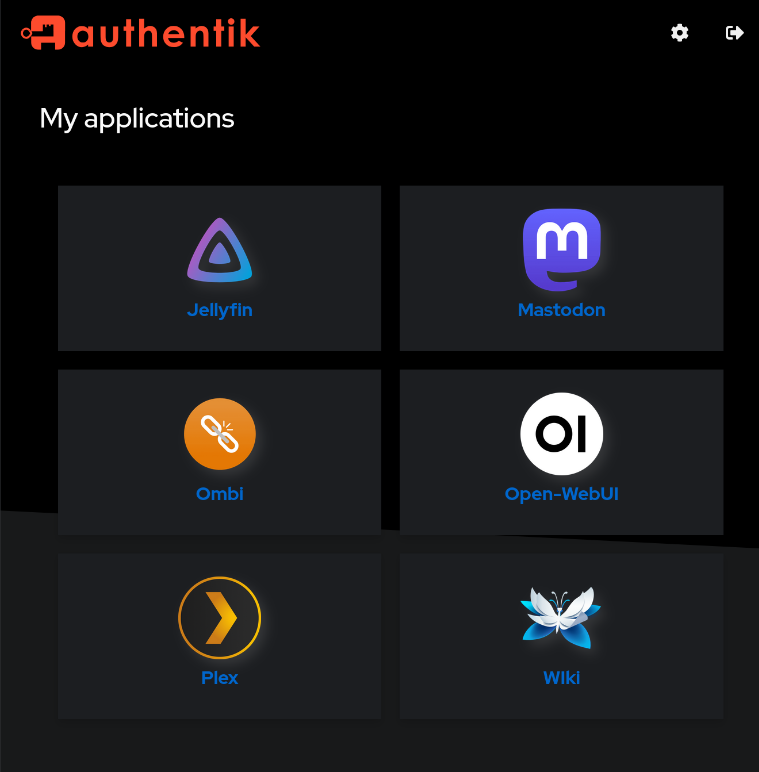
Frist-Time Login
Step 0 - Get your invite
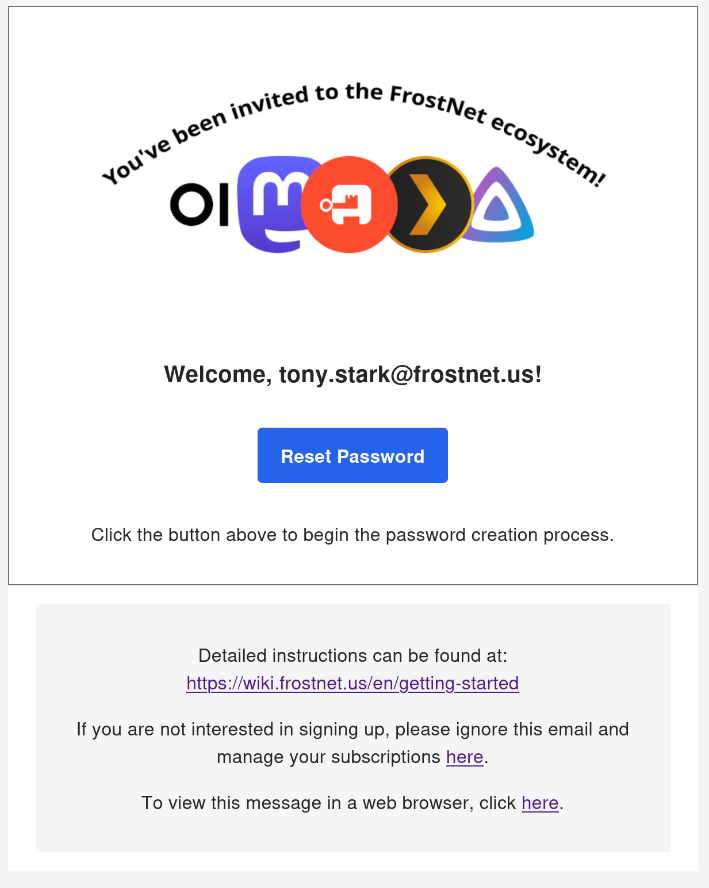
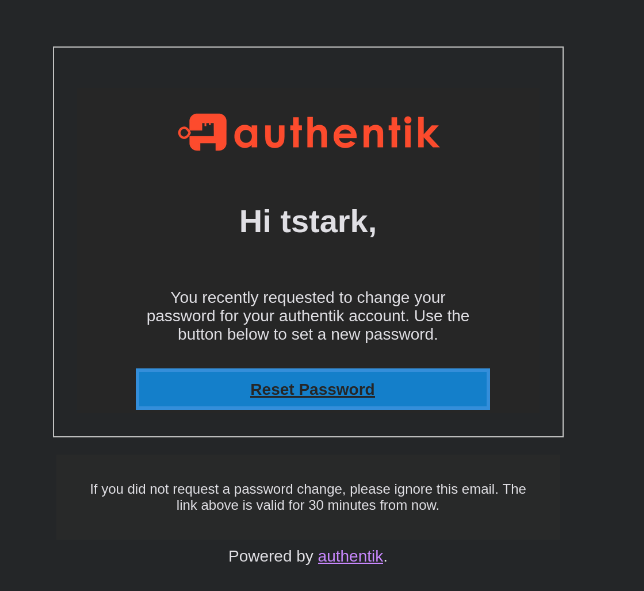
Good news, this is already done! You've received your email and, maybe you aren't an Avenger, but it looks something like below...
Step 1 - Follow the link
Click the "Reset Password" button, which should direct you to Authentik.
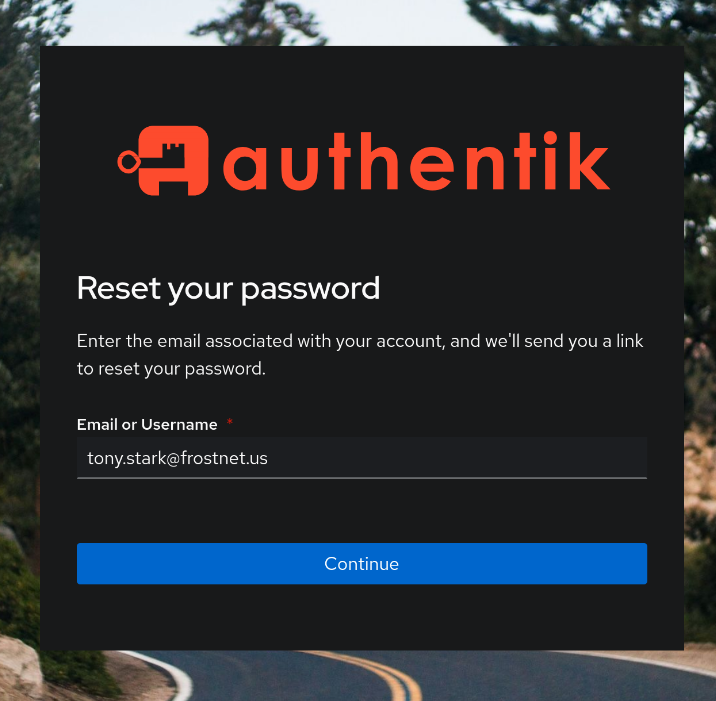
Step 2 - Enter your email
This will bring you to the reset password screen, where you will again have to type your email to receive the password reset link.
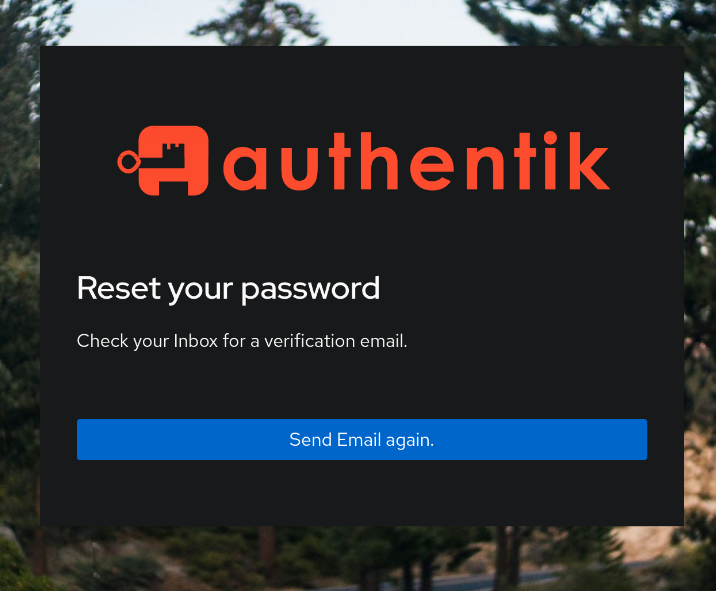
Step 3 - Check your email
A password reset email will be sent to you. This link is only valid for 30 minutes, but can be sent again if needed. If you don't get this link, check your spam, or contact the system administrator for assistance.
Step 4 - Follow another link
Once you receive the password reset email, click the "Reset Password" button, which will direct you back to Authentik.
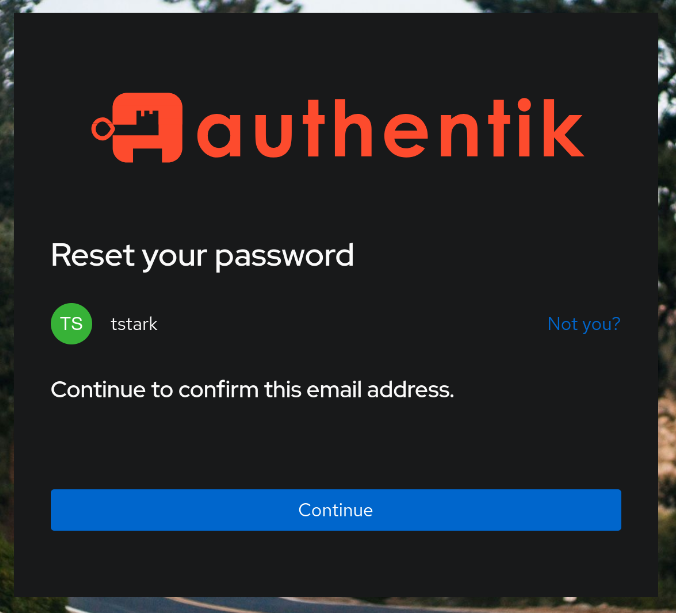
Step 5 - Make sure you're sure
Click on "Continue" to move forward with resetting your password.
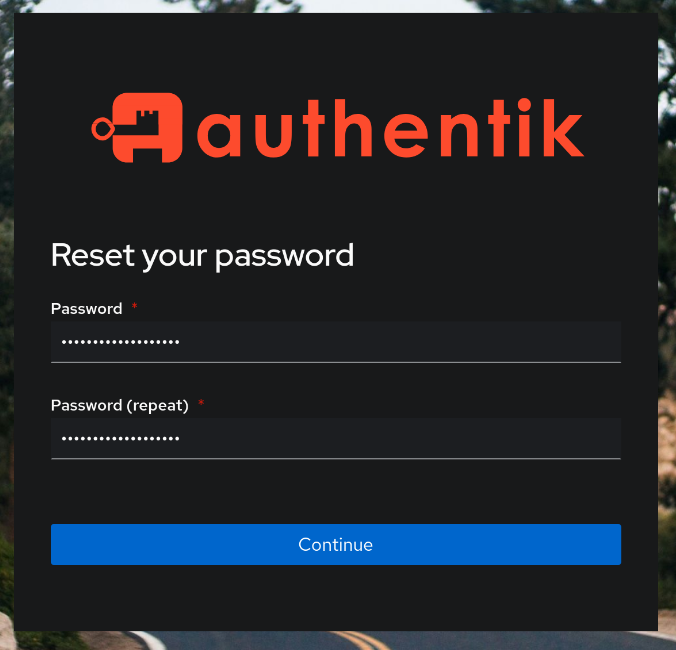
Enter a Sup3r_S3cr3t_Str0ng_Pa$$w0rd twice to continue. --> Not literally, use your imagination...
- A 10+ character password that includes a mix of upper and lower case letters, numbers, and symbols is recommended.
- Authentik also supports MFA tokens, and keys to further secure your account.
Step 6 - Finish line
You're done! Or, should we say you're just warming up? Either way, you should see a list of applications you have immediately available to you.
If for some reason you got stuck along the way, you bump into an issue, or your missing an app, reach out to your system admin for assistance.
You should now be able to log into the Wiki using Authentik and see a description of other apps and useful information.