
GravityMark Linux Install
Installing GravityMark on Linux
GravityMark is a free GPU benchmark tool that tests the performance and stability of graphics hardware by rendering a large number of objects in real-time. It supports various platforms and APIs, allowing users to compare GPU performance across different systems.
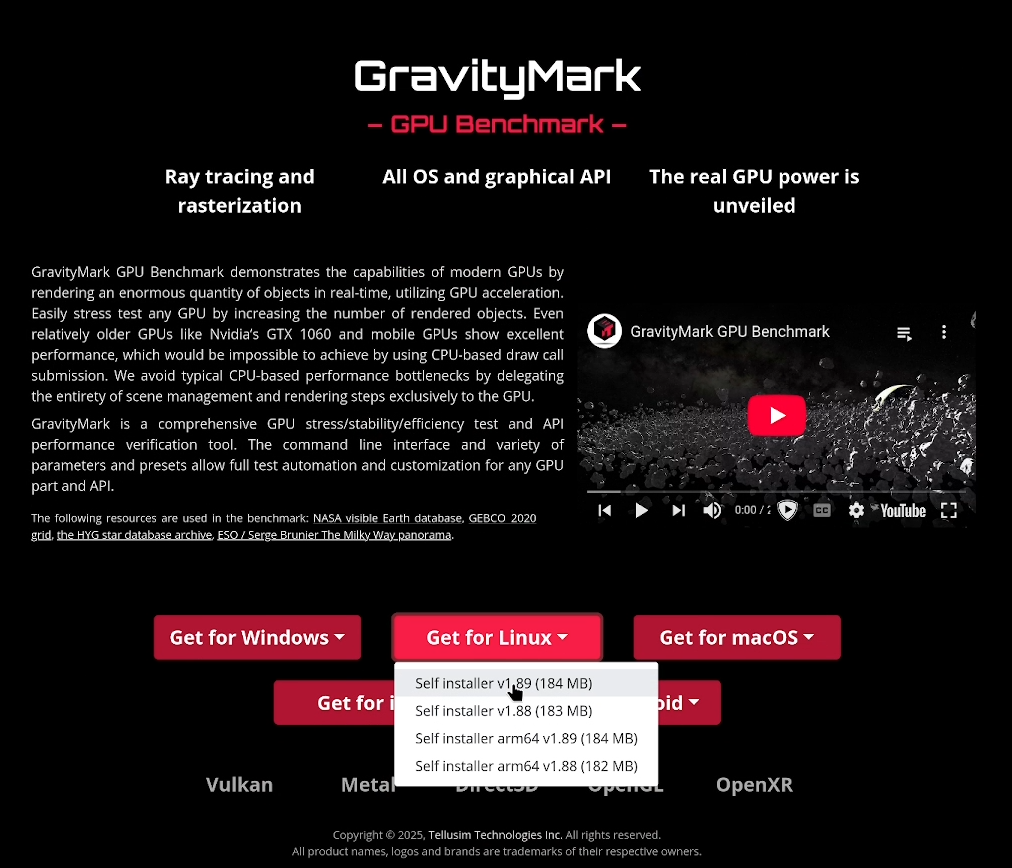
Step 1 - Download GravityMark
Step 2 - Create GravityMark folder
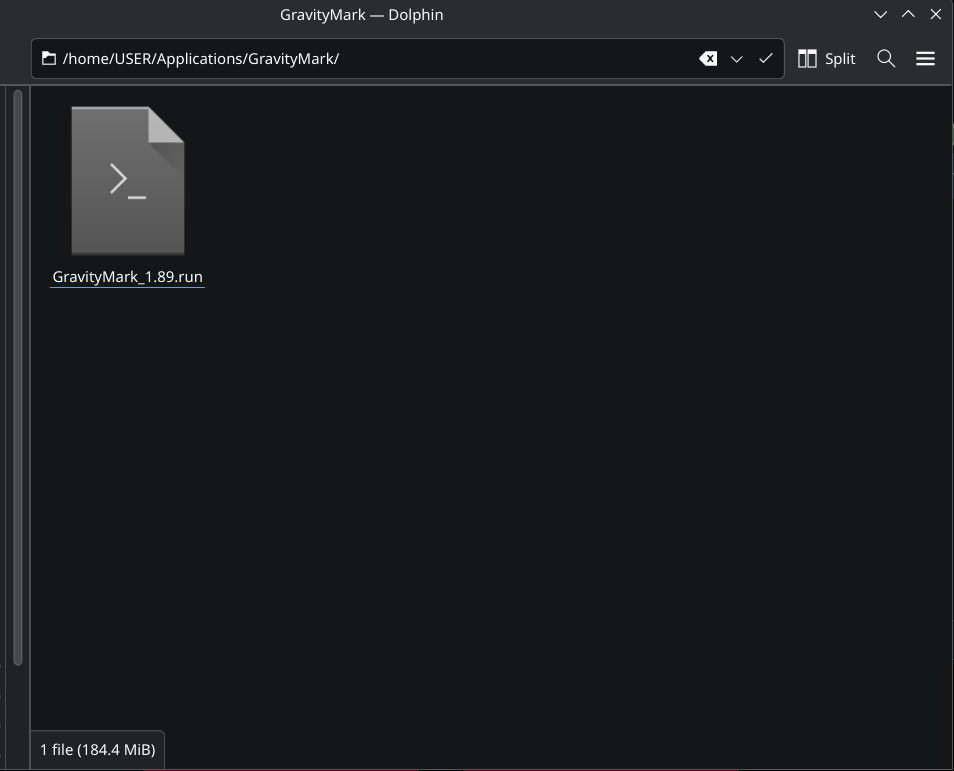
The .run file will launch and create a GravityMark folder itself, but we can tidy things up a bit more by giving it it's own folder. Using your file browser (Dolphin in this example), navigate to where you'd like to keep the installation directory. I will use "/home/USER/Applications/GravityMark". A universal way to access the logged in home directory is using tilde, which would translate to "~/Applications/GravityMark". Move the .run file to this directory.
Step 3 - Mark the file as executable
The file must be given run permissions. This can be done in Dolphin, but we'll be using the terminal to execute the program anyway, so let's open a terminal window (Konsole).
Change directory to the GravityMark folder we created.
cd ~/Applications/GravityMark
Add the executable permission to the .run file. This command will vary depending on the version. (1.89 in our case)
chmod +x ./GravityMark_1.89.run
Step 5 - Run the file
From the GravityMark folder, execute the .run file
./GravityMark_1.89.run
Step 6 - Accept the agreement
Each time you run the file, you will need to accept the license agreement by entering a "y". I'm sure you want to take a moment to read the entire thing.
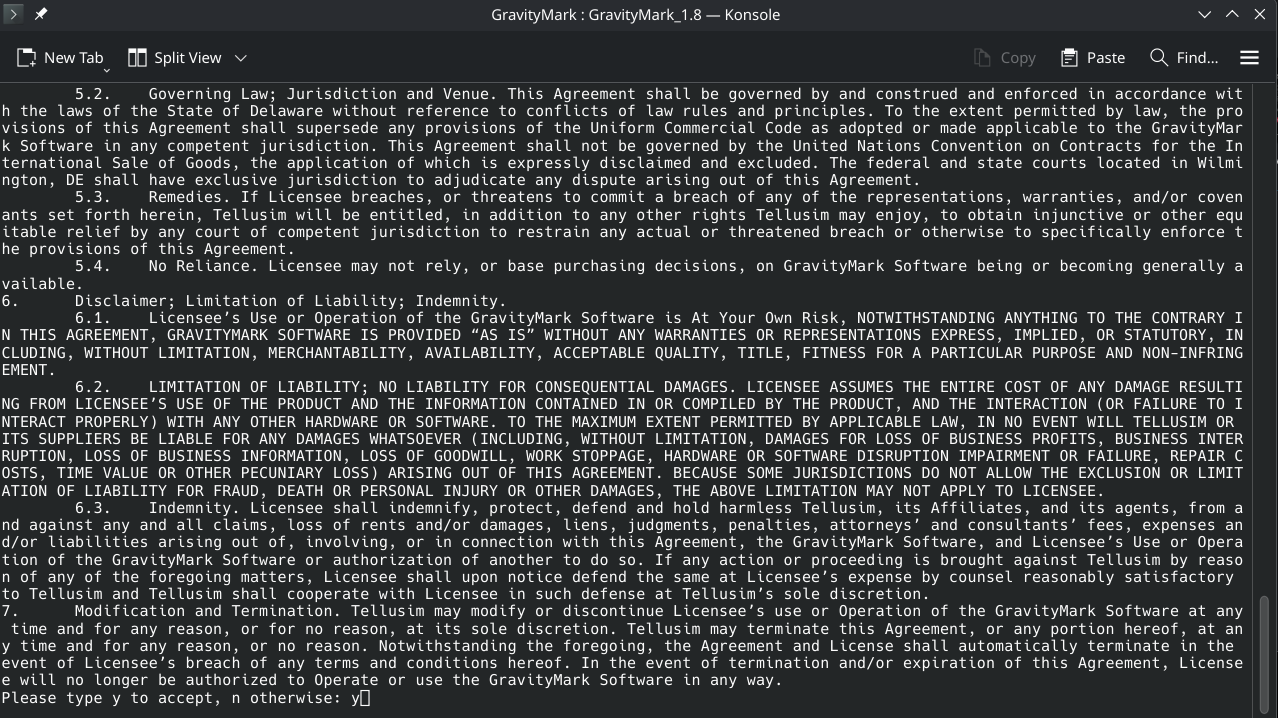
This will decompress the installation files, and a browser window may open.
Step 7 - Running the BenchMark:
GravityMark uses a web page to interact with the program and a browser window should open with benchmark options. It should also bring up a notification window with the link to this page so that you can navigate to the options page if a browswer doesn't open. The address is typically http://localhost:62828/index.html and looks like this:
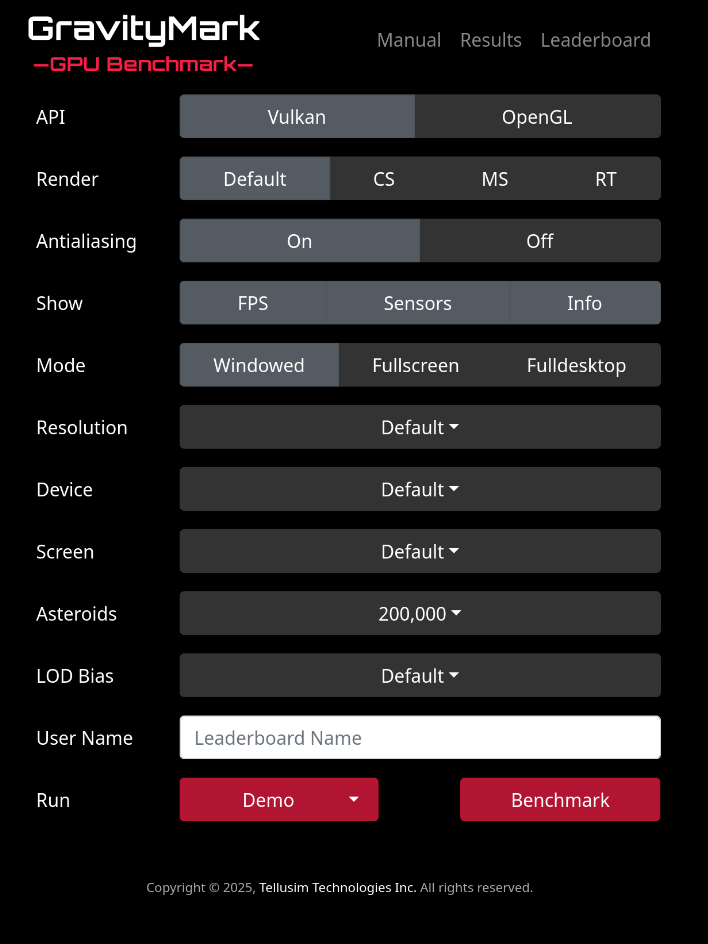
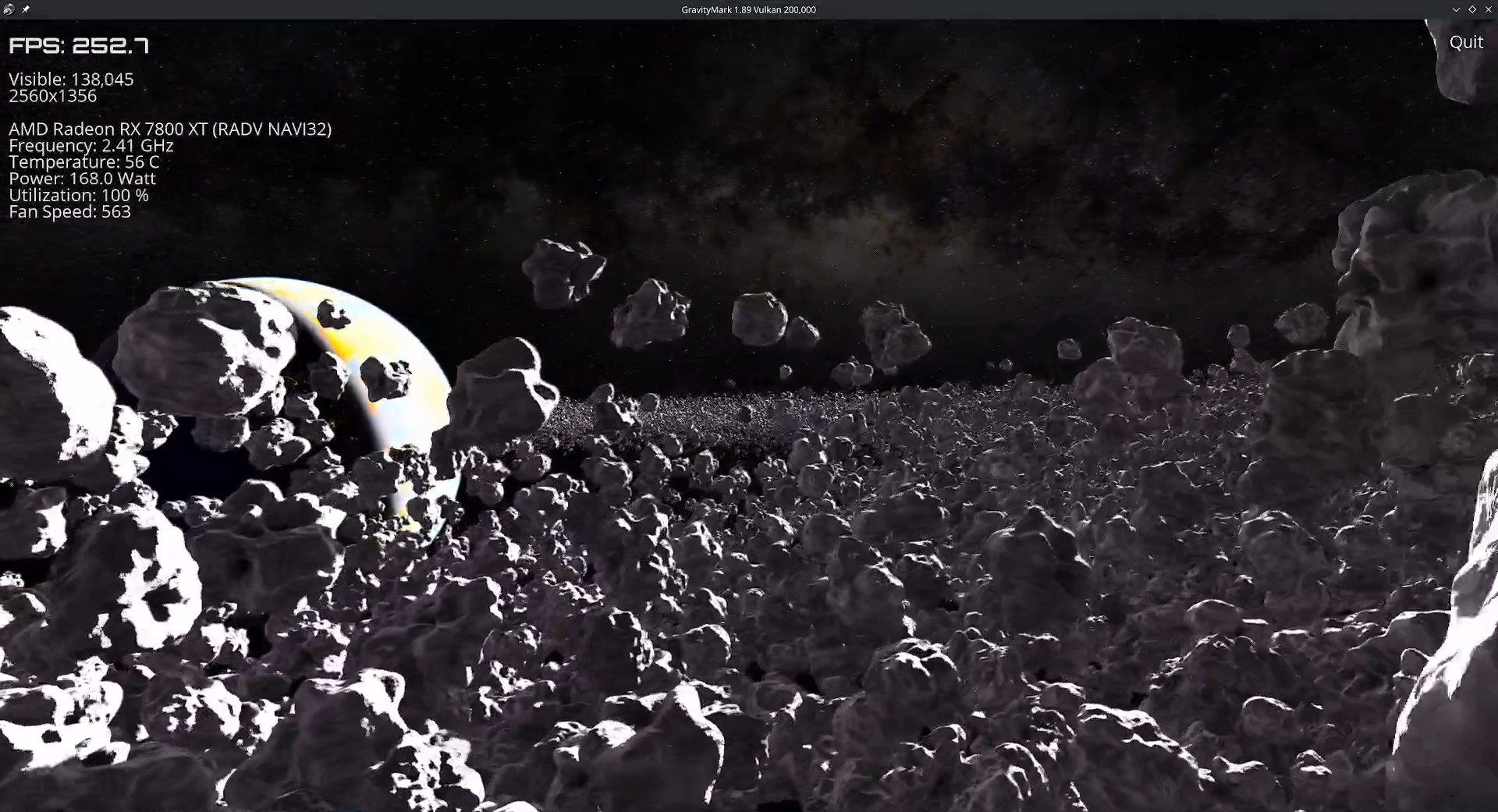
I won't go into all of the options available, but know that you can either run the program in demo mode for personal testing, or enter a leaderboard name and use the benchmark option to submit your scores online. Regardless, tweak the rendering options as you see fit, increasing asteroids is a good way to make your hardware hurt, and choose an option. This should launch the program:
Step 8 - Completion
This is an installation guide, not on overclocking guide, so that's it. Hopefully this helps your diagnostics, otherwise, good luck with the silicon lottery!